About this app
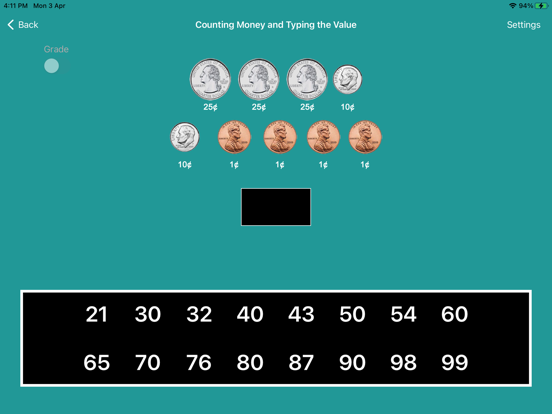
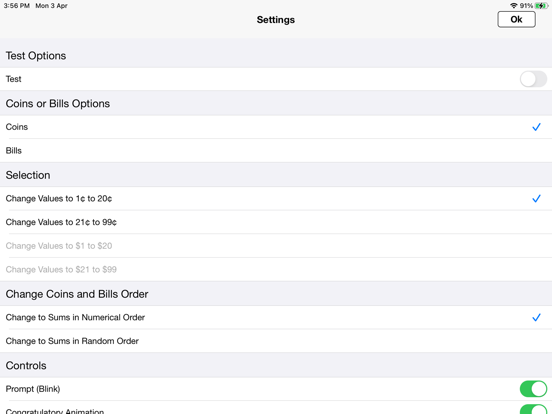
Tap on the app, “Counting Money and Typing the Value” and press the “Enter” button to open this program. The default selections for this program are Values in 1¢ to 20¢, Coins, Training Mode, Prompt with Blink, Congratulatory Animation, Numerical Label under Coin or Bill, and Sums in Numerical Order. Here coins or bills are shown at the top of the screen. The student is asked to type or tap the number that represents the value of the coins or bills shown in the box at the top of the screen. When the student types or taps on the correct number, the number moves to the box at the center of the screen and a congratulatory animation appears. Settings “Settings” is located at the top right corner of the screen. If the therapist/parent needs to adjust the settings, tap the “Settings” to go to the settings.Tap “OK” takes back to the program. Training: The Training mode is selected by default. This program uses coins and bills to train the student to count the value of coins or bills and then tap the “Change Values to …” that represents the value. Test: Here, the student can test him/herself. “Prompt” and “Congratulatory Animation” are disabled. The test results are recorded and “Report” becomes enabled. Report: This displays the results of the “Test”. Coins: This is selected by default. If the “Coins” is selected only coins will appear on the screen. Bills: If the “Bills” is selected only bills will appear on the screen. Change Values to 1¢ to 20¢: If this is selected, this program uses 1¢ to 20¢ to train the student. Change Values to 21¢ to 99¢: If this is selected, this program uses 21¢ to 99¢ to train the student. Change Values to $1 to $20: If this is selected, this program uses $1 to $20 to train the student. Change Values to $21 to $99: If this is selected, this program uses $21 to $99 to train the student. Change to Sums in Numerical Order: When this is selected the selection of sums of coins or bills in the box at the top of the screen will change numerical order per each training or test. Change to Sums in Random Order: When this is selected the selection of sums of coins or bills in the box at the top of the screen will change random order per each training or test. Prompt (Blink): This is selected by default. If the student fails to type or tap the correct value within ten seconds, the program guides him/her to the correct value by making the number blink. This is available for “Training” mode but disabled for “Test” mode. Congratulatory Animation: This box is selected by default. This is available only for the “Training” mode. When this is selected, tapping the correct value invites a congratulatory animation. This animation runs for ten seconds. Tap anywhere on the screen or press space bar to stop the congratulatory animation. Uncheck the box if the student doesn’t need congratulatory animation. Display the value of the Coin or Bill: When this is selected a numerical label appears under each coin or bill.
Latest release
What’s New
The current app version updated with the new age rating.
Audience growth
Ratings growth
Baseline captured. Growth appears after the crawler observes a changed rating count.
Momentum comes from crawler snapshots for the tracked storefront. “Viral growth signal” means unusually fast recent rating gains; it is an indicator, not download data.
Price tracking
Price intelligence
First snapshot captured. The trend line starts after the next crawler price observation.
- First observed Aug 27, 2026 · 9:14 AM Free
Screenshots