About this app
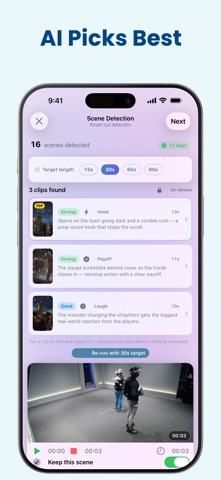
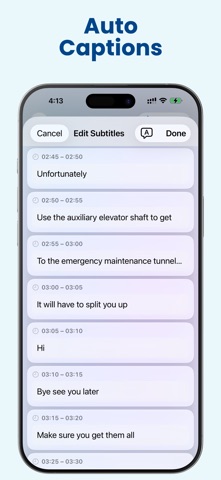
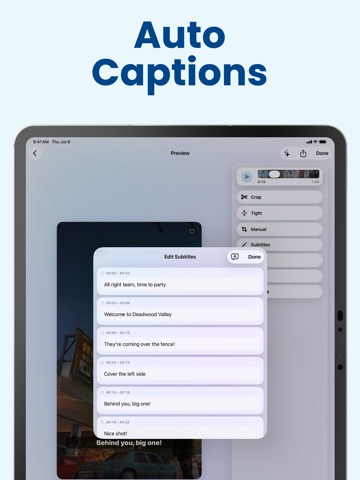
You filmed something long. You need short clips for TikTok, Reels and Shorts. Finding the good parts means scrubbing for hours. Clipolette does that part for you. Add your recording. It finds the moments worth posting and turns them into vertical 9:16 clips, ready to upload. Podcasts, interviews, livestreams, sermons, webinars, lessons, gameplay, or one long take on your phone. Anything with talking works — it finds moments by reading what is said. HOW IT WORKS 1. Add your video from Photos or Files. 2. Tap Find best moments. 3. Your clips appear, best one first. Tap one to open it. 4. Export and post. One long video becomes a short list of clips. IT FINDS THE GOOD PARTS Pick a target length — 15, 30, 60 or 90 seconds. Clipolette reads what is actually said and picks the moments worth cutting. It also hears laughter, applause and cheering, and the moments your voice gets loud. Every clip tells you why it was picked, with an honest strength rating. If nothing stood out, it says so instead of inventing a favourite. Runs on your device. No account. Nothing is uploaded. IT FRAMES ITSELF Open a clip and it frames itself, centred on the faces it found. Want it framed differently? • Crop — re-centre on faces, or run a deeper, slower scan. • Follow Subject — keeps your subject in frame as they move, and switches to whoever is speaking when two people share the shot. No face on screen? It follows the action, so gameplay stays centred. • Blur — keeps your whole shot, against a soft blurred background. • Manual — pan and zoom by hand when you want the final say. Turn on Safe Zones to see where TikTok, Reels and Shorts buttons sit, before you export. POLISH IT • Captions — automatic, word by word, in five ready-made styles, or your own colour and size. Edit any caption by hand, translate them, or fix a word across every caption at once. • Pauses — cut the dead air between sentences. Captions stay in sync. • Fillers — cut the "ums" and "uhs" (English, plus French "euh"). • Trim — set the exact start and end of any scene, guided by the waveform. • Slow motion — half or quarter speed on any scene. That scene plays silent. • Enhance — sharpen soft, low-resolution footage toward 1080p. It appears when your footage can benefit. POST KIT Add captions, then let Clipolette write your packaging: an on-screen hook, a title, a caption, and hashtags. Burn the hook onto the video; paste the rest where you post. SCENE BY SCENE Clipolette splits your video into scenes on its own. Keep the ones you want, drop the rest. PICK UP WHERE YOU LEFT OFF Projects save on their own. Reopen one and your scenes and clips are right there — no re-scanning. WALK AWAY WHILE IT WORKS Switch apps or lock your phone. Scene analysis, moment-finding and exports keep going. Come back when they are done. WHY CREATORS LIKE IT • Private by design. No account, nothing sent to us, everything runs on your device. • Every editing tool is free. No subscription, ever. • One payment removes the watermark from your exports. Pay once, keep it forever. Already have a short clip? That works too. WHAT YOU NEED Clipolette works on iPhone and iPad with iOS 18 or later. • Captions need your language's dictation model on the device. Clipolette adds it, or tells you which one to add — your audio never leaves the device. Translation needs that language downloaded too. • Finding your best moments uses Apple Intelligence, and needs iOS 26 or iPadOS 26 on a device that supports it. It reads speech, so your video needs sound. Post Kit uses it too; elsewhere it still writes one, just more simply. • Saved projects, smoother slow motion, Enhance, and running while you switch apps need iOS 26 or iPadOS 26. • Everything else — captions, translation, framing, scene detection, trimming and slow motion — works on iOS 18 and later.
Latest release
What’s New
This update makes it easier to choose a clip. SEE MORE, SCROLL LESS • The scene list now fits about three times more scenes on screen, so you can find a clip without endless scrolling. KNOW WHAT A CLIP IS BEFORE YOU TAP IT • Each suggested clip now shows its opening line, so you can judge the hook at a glance. • The trim view now draws the 9:16 guide too, so your biggest look at the footage shows what the vertical crop will keep — and the preview itself is much larger. • Trim times are now labelled "Keeping" and "Scene", so it's clear which is which. A CALMER WAIT • Progress now tells you which step you're on and roughly how long is left. SMALL THINGS THAT HELP • A new app icon that adapts to Light, Dark and tinted Home Screens. • Home now shows your recent projects first when you come back. • Post Kit can copy your caption and hashtags together in a single tap. • Settings now includes Contact Support and Privacy Policy. • Clearer buttons throughout — "Edit 5:00" now tells you exactly what you're about to open, and the way back to your other clips is now labelled "Clips". • On iPad, the caption style picker no longer covers the caption you're styling. ACCESSIBILITY • Caption text now wraps instead of being cut off at large text sizes. • Text no longer stops growing at the largest two sizes — the Home screen and the editor's playback and tool controls now scale all the way. • Cleaner, quieter on long lists. Everything still runs on your device — nothing is uploaded. Questions or ideas? We'd love to hear from you: support@futuraapp.com
Audience growth
Ratings growth
Momentum comes from crawler snapshots for the tracked storefront. “Viral growth signal” means unusually fast recent rating gains; it is an indicator, not download data.
Price tracking
Price intelligence
First snapshot captured. The trend line starts after the next crawler price observation.
- First observed Aug 7, 2026 · 6:38 AM Free
Screenshots