About this app
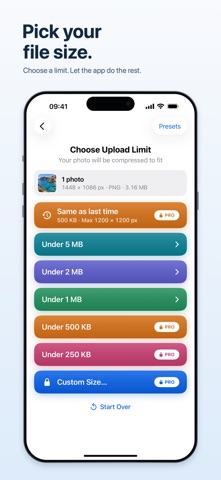
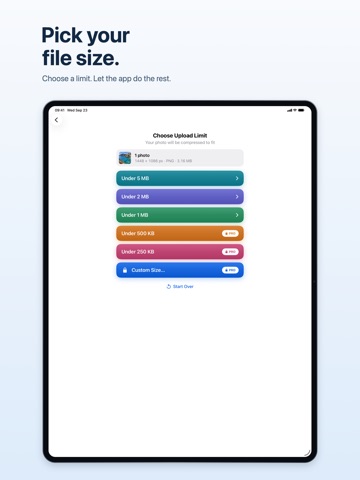
A form needs a smaller photo? Set its maximum file size and pixel dimensions, then export a JPEG checked against both requirements. Choose an image from Photos or Files. Enter a limit in KB or MB and choose exact dimensions, maximum dimensions, width or height. Crop to fill, or keep the whole image with white borders when exact dimensions require them. Inspect the result and save to Files, Photos or the share sheet. Choose up to three photos at once — ten with Pro — and one set of requirements applies to all of them, while each photo keeps its own framing. Images are processed on your device. No account, ads or image uploads. Location and camera metadata are removed by default. Your original stays unchanged. Preview results for free, and your first export is free. The 5 MB, 2 MB and 1 MB limits are free to use. Ready to Upload Pro adds the 500 KB and 250 KB limits, your own size in pixels, unlimited exports, ten photos at a time and saved requirements. Choose a monthly or yearly subscription, or pay once and keep Pro for good. A subscription renews until you cancel it, and you can manage or cancel it in your Apple Account. Imports JPEG, PNG, HEIC and TIFF still images; exports JPEG. Transparency becomes white. Very restrictive requirements may be impossible: the app tells you instead of exporting an oversized file. Verification checks the saved file, not whether a website accepts its content. Terms of Use (EULA): https://www.apple.com/legal/internet-services/itunes/dev/stdeula/
Latest release
What’s New
Ready to Upload now speaks your language. The whole app is available in 15 languages: English, German, French, Spanish, Italian, Dutch, Swedish, Brazilian Portuguese, Polish, Turkish, Arabic, Indonesian, Japanese, Korean and Traditional Chinese. In Arabic, it reads from right to left. Pro can now be yours for good: one payment, beside the monthly and yearly plans. A new switch in the app’s settings lets you share anonymous usage data and crash reports, which help us improve the app. Your photos and their details are never included.
Audience growth
Ratings growth
Baseline captured. Growth appears after the crawler observes a changed rating count.
Momentum comes from crawler snapshots for the tracked storefront. “Viral growth signal” means unusually fast recent rating gains; it is an indicator, not download data.
Price tracking
Price intelligence
First snapshot captured. The trend line starts after the next crawler price observation.
- First observed Oct 10, 2026 · 2:44 AM Free
Screenshots