About this app
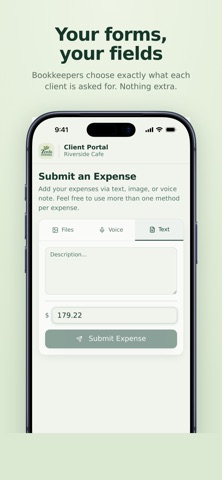
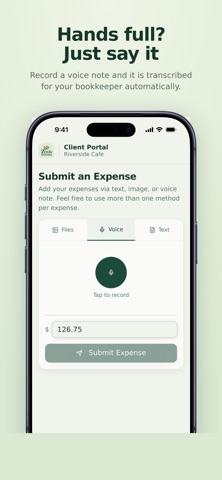
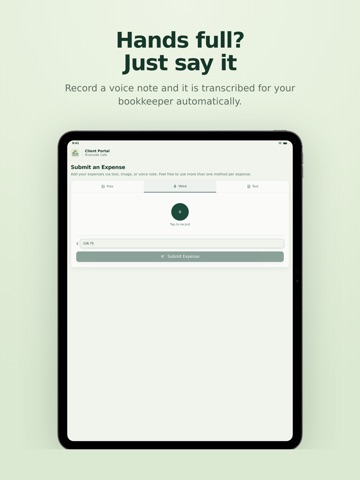
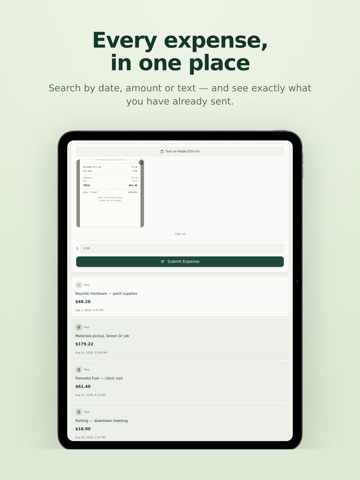
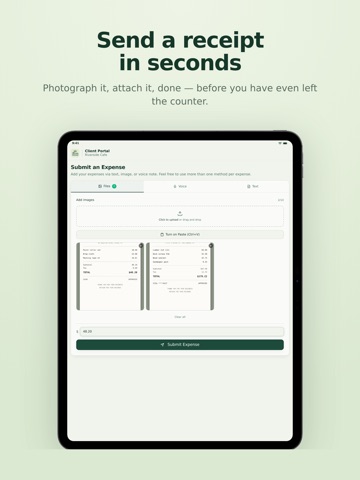
Send a receipt to your bookkeeper before you've left the counter. Photograph it, say it out loud, or type it in. It arrives filed against your account, ready to post — no forwarding emails, no spreadsheets, no shoebox at quarter end. There are three ways to send an expense: • Photo — snap the receipt at the counter, or attach one you already have. Up to ten images or PDFs per expense. • Voice — hands full? Describe the expense out loud and it's transcribed for you. • Text — type it in, using the fields your bookkeeper set up. Use more than one on the same expense. A photo of the receipt plus a voice note explaining what it was for is the common combination. Your bookkeeping firm decides what each client is asked for — vendor, job, property, category — so you're never filling in fields that don't apply to your business. Every submission arrives organized. Add the people at your company who need to submit expenses. Administrators choose who sees everything and who sees only their own. Everything you've sent stays searchable by date, amount or text, with the original receipt attached. Zenfo Expenses is provided through your bookkeeping firm. Accounts are set up by them, and there is nothing to buy in the app.
Latest release
What’s New
• Signing in on a phone is easier — the form now lifts above the keyboard, so the password field and Sign In button are always reachable. • Going back from a client keeps your place in the list instead of jumping to the top. • Same fix applied to the password setup screen from invite links.
Audience growth
Ratings growth
Baseline captured. Growth appears after the crawler observes a changed rating count.
Momentum comes from crawler snapshots for the tracked storefront. “Viral growth signal” means unusually fast recent rating gains; it is an indicator, not download data.
Price tracking
Price intelligence
First snapshot captured. The trend line starts after the next crawler price observation.
- First observed Sep 7, 2026 · 10:02 PM Free
Screenshots